
Setup Custom Triggers
Note: This guide assumes you have a simple understanding of how Streamer.Bot works.
You can setup custom triggers, which allows the bot to respond to many events. In this guide, I will be setting up a trigger for a shoutout command, but with a simple understanding of how Streamer.Bot works, you can easily setup any trigger you want.
Create a new trigger
- In Actions, navigate to the Events action.
- In the Triggers section, add a trigger by doing a right click and go in Add > Core > Commands > Command Triggered.
- If you already have a command, select it in the select field and skip to step 4. Otherwise, click Create Command.
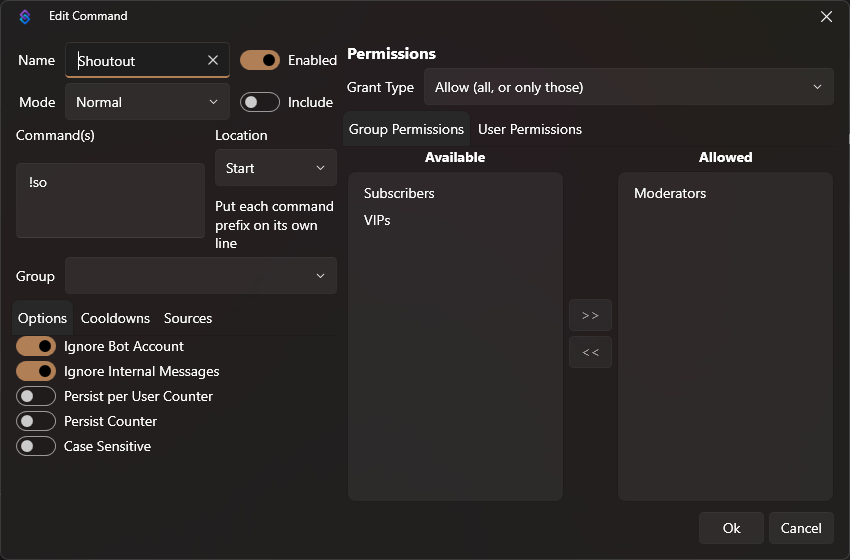
- Setup the command configuration as you wish, and click Ok, then Ok again. Here is an example of a command:
Setup a new event handler
- In the Sub-Actions section, locate {} switch ("%triggerName%"), right click on it and select Add Case.
- In the field, enter the type of trigger that you just added, in this case, it is Command Triggered, click Add, then Ok.
- Now locate any switch case that already exists, like case (Reward Redemption), right click on it and select Copy Sub-Actions Contents.
- In the newly created case, right click on it and select Paste Into Sub-Action.
Customize the event handler
- Double click on the action called Twitch Add Target Info, and change the value to
%input0%.
The variable
%input0%corresponds to the first argument of the command. If the trigger is something else than a command, I suggest you to look at the Streamer.Bot documentation for that specific trigger to find the correct variable.
- If you want the bot to only send the message in chat, double click on the action called Set argument %silent% and set it to
True. - Double click on the action called Set argument %aiPrompt% and change the value to what you want the bot to do. In this case, I will set it to
Give a shoutout to %input0%. - Since this is a shoutout command, I will also add a new action that triggers a Twitch Shoutout, in the case, right click and select Add > Twitch > Moderation > Send Shoutout, then set the value to
%input0%.
Give instructions to the AI
The bot currently doesn't know what a shoutout really means, so I suggest you adding instructions explaining it. Here is what I added:
-When asked to give a shoutout, you are giving a Twitch shoutout, the information you are getting is from a previous stream, you must say that they were playing the game last stream.
-When asked to give a shoutout, be sure to be full of emojis and emotion, but don't put tags/hashtags.